
How to Animate Old Family Photos Without Overediting Them
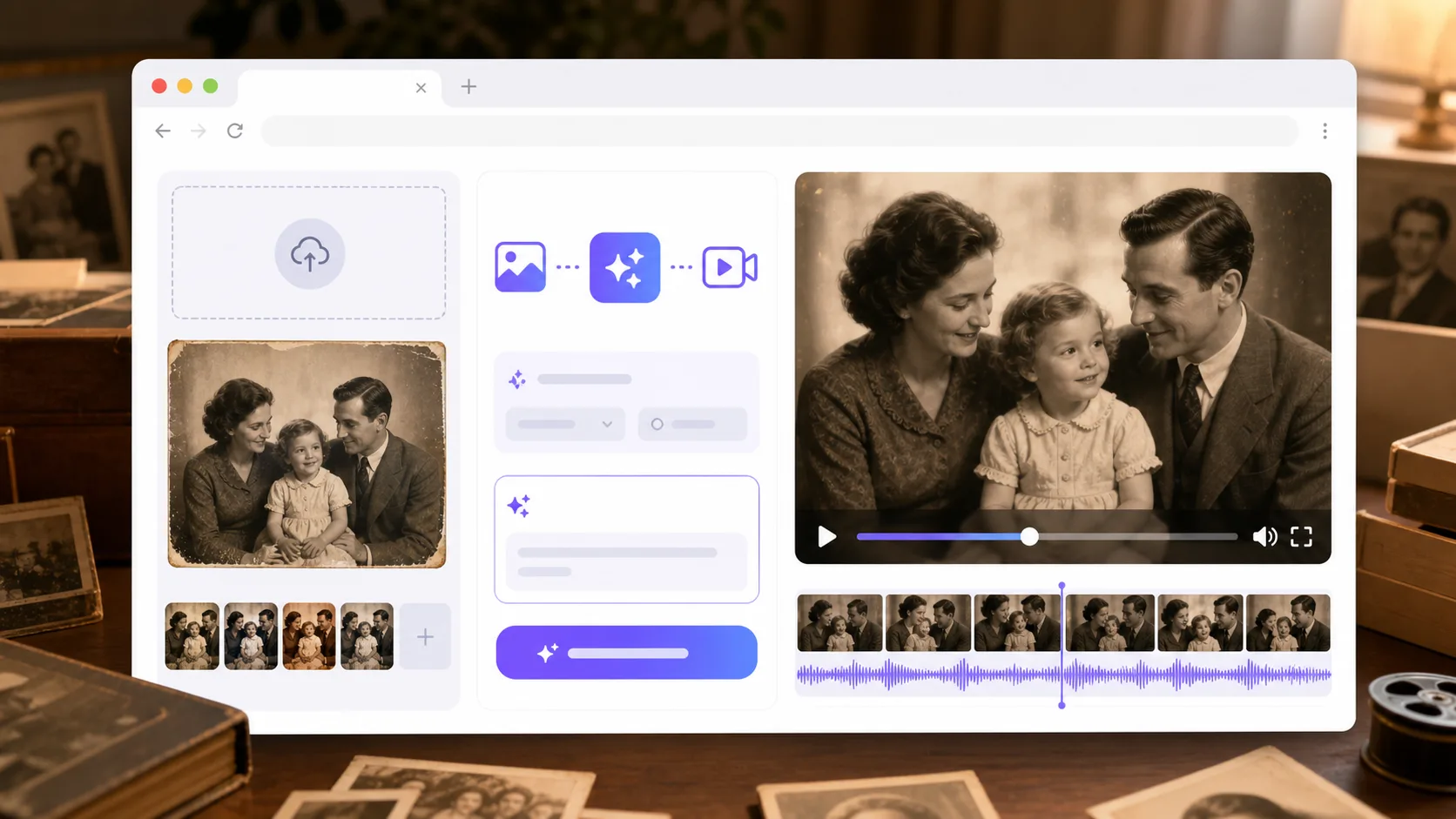
Old family photos need a lighter touch than product shots or social clips. The goal is not to modernize every detail; it is to create a short motion preview that keeps the person recognizable and the memory intact. As of May 2026, ImageToVideoAIFree works well for this first test because you can upload PNG, JPG, JPEG, or WEBP files up to 10 MB and start with a 480p · 2s preview before deciding whether the photo deserves more work.
Restore just enough before animation
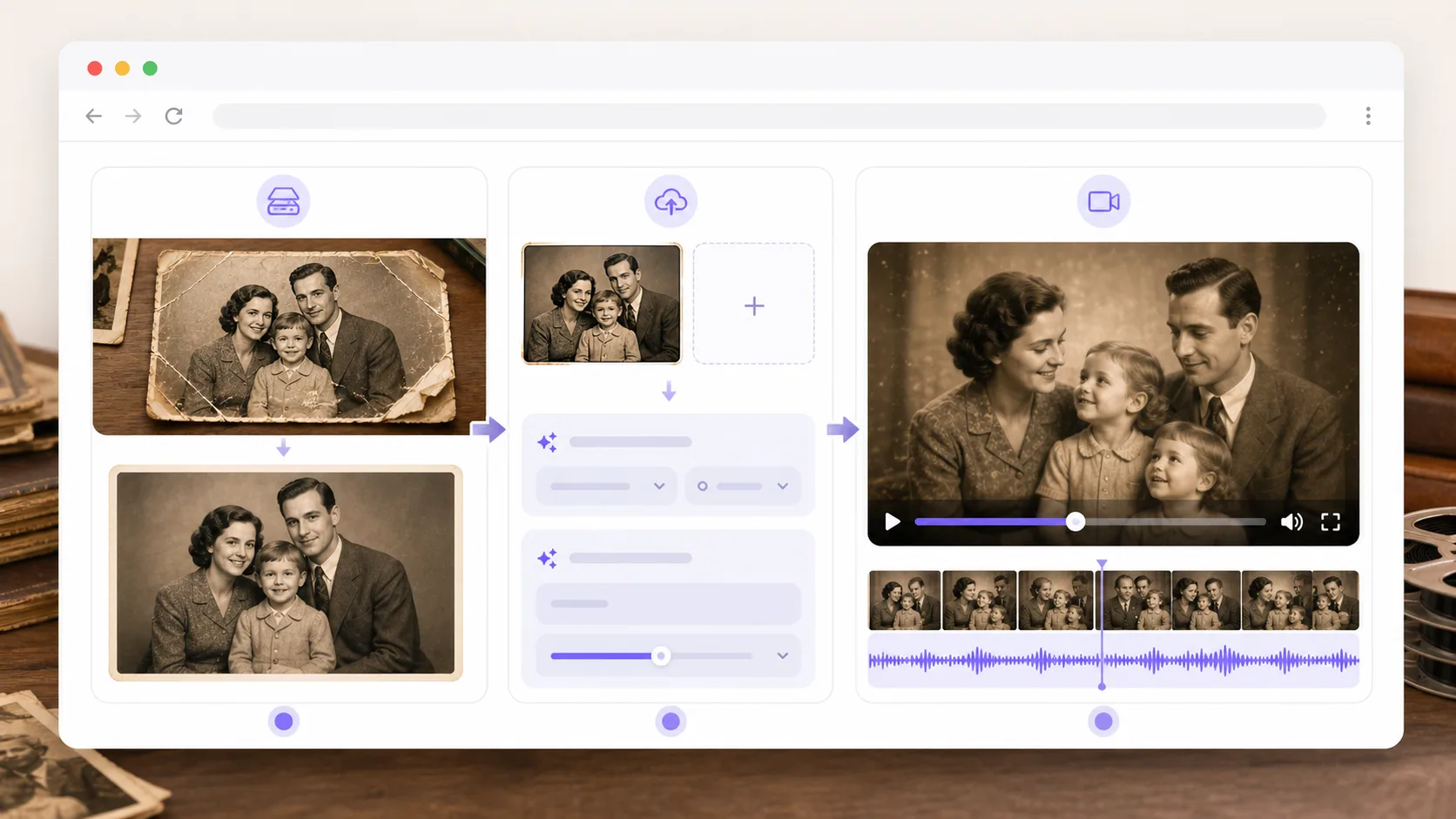
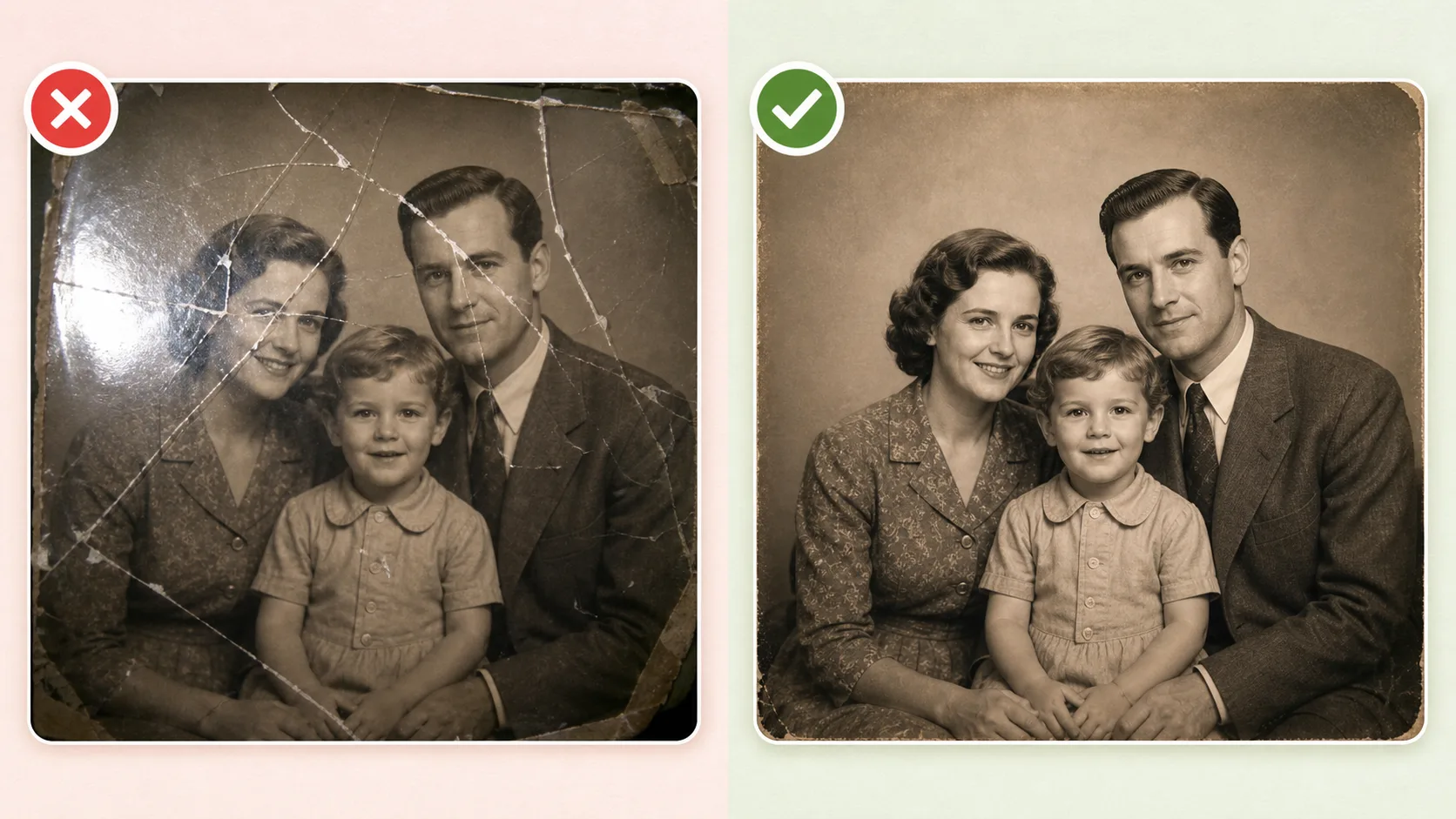
Do not over-restore the image before you animate it. Heavy face enhancement can create a person who looks cleaner but less familiar. A small cleanup is usually better: straighten the scan, remove dust, improve contrast, and crop away damaged edges.
Use this scan check before uploading:
| Photo issue | Good enough for animation | Fix before upload |
|---|---|---|
| Face detail | Eyes, mouth, and jawline are visible | Face is blurred or scratched |
| Paper damage | Small marks outside the face | Creases across eyes or mouth |
| Lighting | Slightly faded but readable | Very dark or blown out |
| Crop | Head and shoulders have space | Top of head or hands cut off |
| Background | Simple room, garden, studio, or street | Busy crowd with tiny faces |
If the only copy is a phone photo of a printed photo, take it again in soft daylight. Keep the phone parallel to the print and avoid glare from glass frames.
A careful old-photo animation workflow
The safest workflow is slow and respectful. Treat the first generation as a motion test, not a finished tribute.
- Scan or photograph the old family photo as clearly as possible.
- Crop around the person or small group, leaving space around faces and shoulders.
- Open the image-to-video generator and upload the file.
- Start with one calm motion: slow push-in, subtle head movement, soft light, or gentle background parallax.
- Generate a short preview.
- Check face identity, hands, glasses, hats, uniforms, and background lines.
- If anything changes too much, reduce motion and regenerate.
- Add captions, names, dates, and music outside the AI generation step.
This is where restraint helps. A family album clip feels stronger when the motion is believable. A small smile or camera move is usually more moving than a dramatic scene change.
Prompts that protect the original person
Try prompts that say what should move and what must stay stable.
slow gentle camera push in, natural expression, subtle breathing, soft archival photo mood, keep face, clothing, and background unchanged
old family portrait comes to life softly, slight head movement, warm light, stable identity, no modern clothing, no scene change
gentle parallax on a vintage family photo, calm respectful motion, keep facial features and original photo style stable
For a group photo, use camera movement instead of individual actions:
slow camera movement across the family group, natural stillness, stable faces, original clothing and room remain unchanged
If you want to match the movement from another clip, use motion control. If you have a cleaner reference image of the same person, reference to video can help you keep the visual direction consistent. For a lighter preset-style animation, browse AI video effects before writing a custom prompt.
Quality checks for family photos
Old-photo mistakes are often subtle. Watch the preview with the original image open beside it.
| Check | What to compare | Fix |
|---|---|---|
| Identity | Eyes, mouth, jaw, hairstyle | Lower motion and avoid expression changes |
| Clothing | Collars, buttons, uniforms, hats | Ask to keep original clothing unchanged |
| Hands | Fingers and sleeves | Crop if hands are damaged |
| Era details | Furniture, car, street, wallpaper | Avoid prompts that add modern objects |
| Mood | Respectful and calm | Remove dramatic effects |
If the person becomes too smooth or young, the prompt is probably asking for too much. Use archival, gentle, and stable language instead of cinematic transformation language.
Common mistakes
Trying to fix everything at once. Restoration, colorization, animation, captions, and music are separate jobs. Do the minimum cleanup first, then animate.
Changing the setting. A new background can erase the value of the photo. Keep the room, garden, street, or studio intact when it matters to the family story.
Adding fake details. Do not invent names, dates, places, or relationships. Put verified captions on the final video instead.
Using a dramatic prompt. Phrases like fast movement, dancing, or outfit change can distort faces. Start calm.
FAQ
Can AI animate a very old photo?
Yes, if the face and main subject are still readable. A scan with clear facial features works better than a damaged print with scratches across the eyes or mouth.
Should I colorize the photo first?
Only if color helps the final memory. Many old family photos look better with their original black-and-white or sepia tone preserved.
How long should the animated clip be?
Start with a short preview. A 2-second test is enough to see whether the person stays recognizable before you make a longer tribute or slideshow.
Can I animate several family photos together?
Yes, but animate each photo separately first. Then combine the best clips in a video editor with names, dates, and music.
Make the memory move gently
The best old-photo animation feels like a small window into the original moment. Keep the prompt calm, compare the result against the original, and only continue when the person still looks like themselves. Open ImageToVideoAIFree and turn one family photo into a short video.
David
Founder of GPT Image 2. Passionate about AI and technology. Exploring the boundaries of generative models and sharing insights with the community.