
Text to Video AI: What Works, What to Avoid, and How to Start
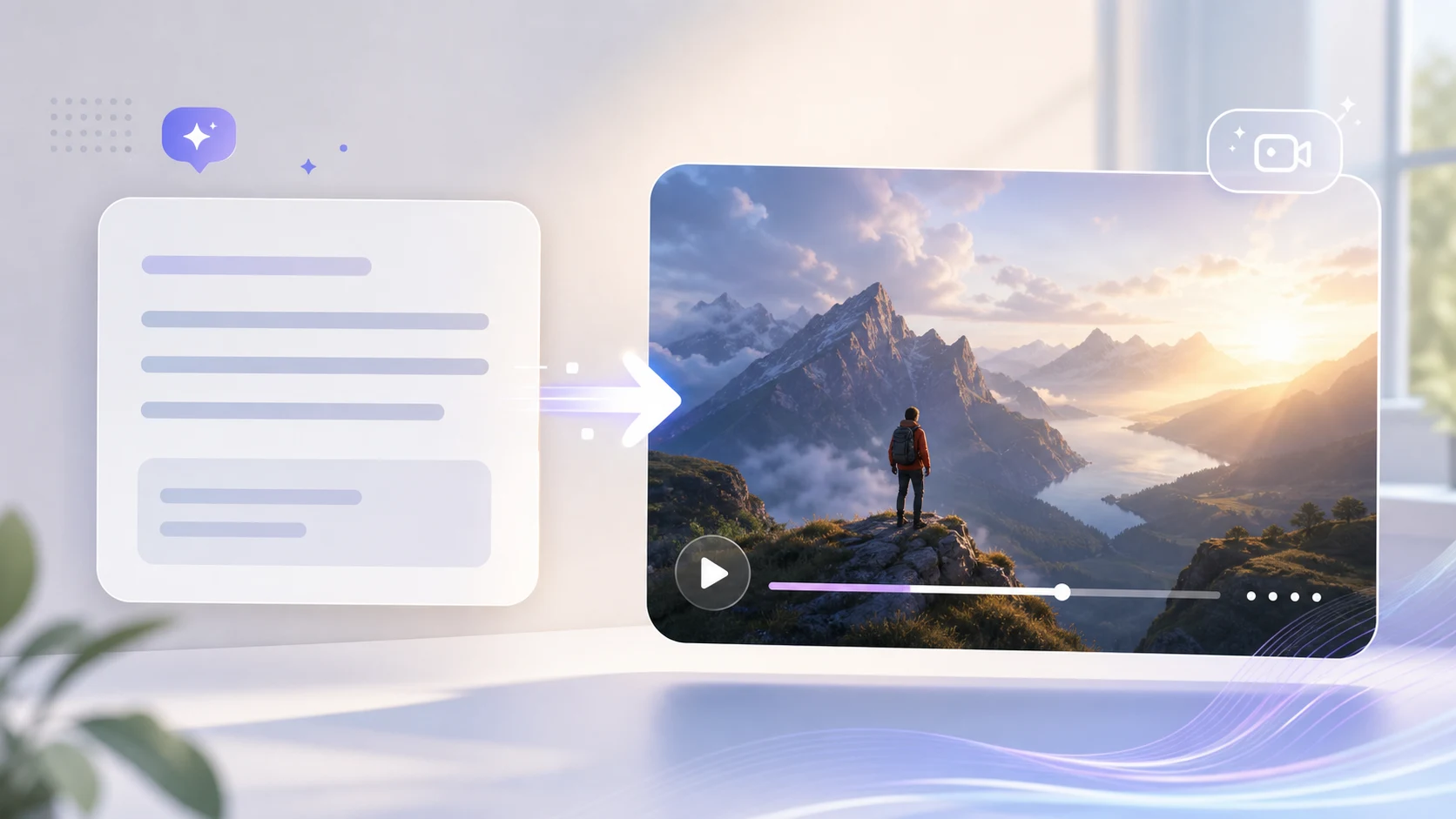
Text to video AI works best when the first clip has a narrow job: test one idea, one subject, and one motion direction. As of May 21, 2026, ImageToVideoAIFree separates text-first creation from image-to-video testing, so you can start with the AI video generator for a written idea or use the homepage when you already have a strong source image. The fastest path is a short preview, not a complicated prompt that asks the model to solve every creative decision at once.
What text to video AI can actually help with
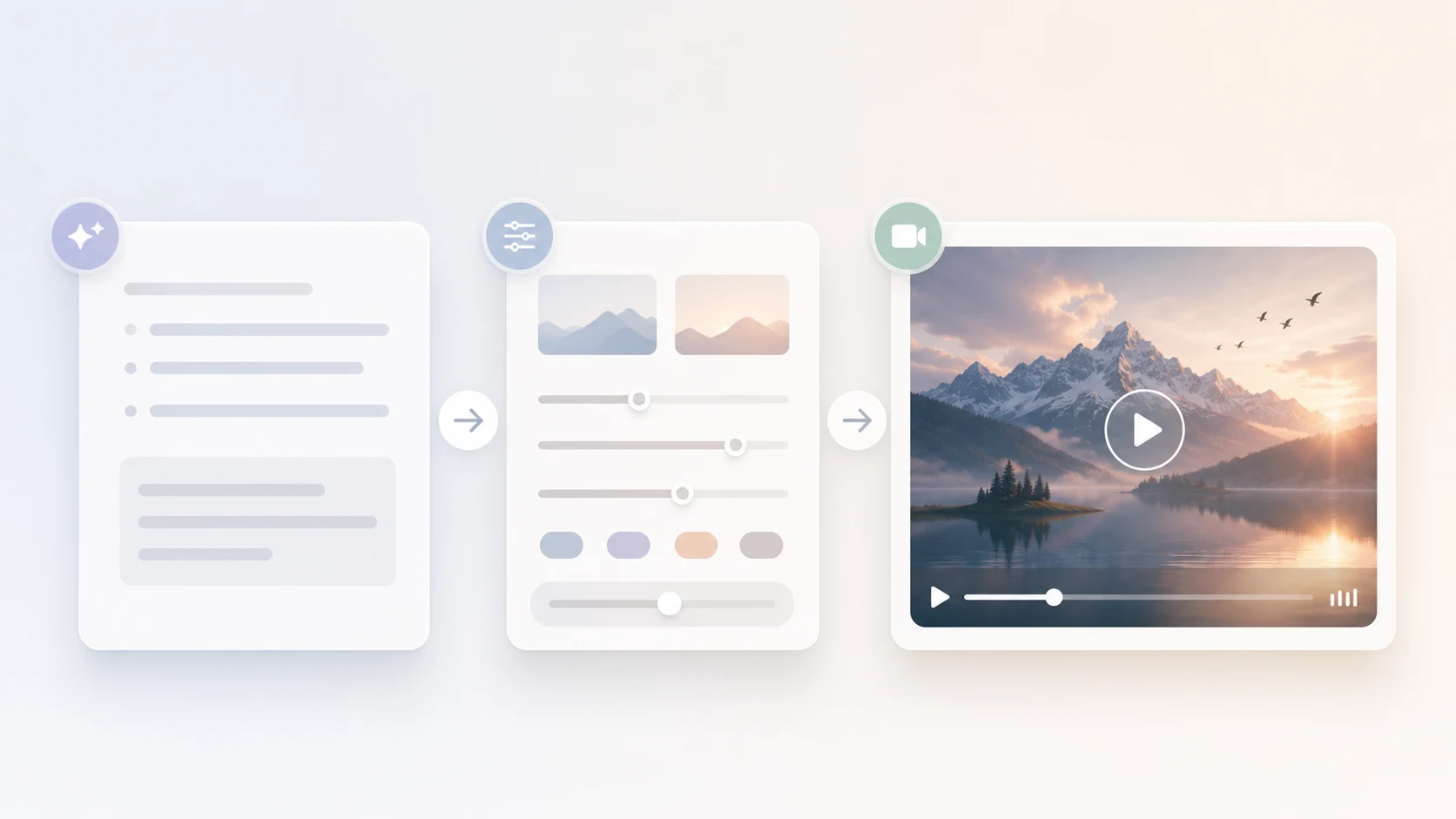
Text to video AI turns a written prompt into a short visual clip. The useful part is speed: you can test a scene, ad concept, social hook, or product teaser before hiring a crew or opening a full editing timeline.
It is strongest for:
- concept clips where the exact person or product does not need to match a real asset;
- social video ideas that need a visual direction fast;
- background scenes, mood shots, and teaser footage;
- storyboards for marketers and founders;
- short tests before moving to image-guided or reference-guided generation.
It is weaker when you need perfect product packaging, exact typography, readable UI, or a real person’s likeness. In those cases, start from an image with the image-to-video workflow or use reference to video so the model has a clearer anchor.
For product-specific constraints, keep the current ImageToVideoAIFree limits in mind before you write the prompt: reference images should stay under 10 MB, the prompt field supports up to 2,500 characters, and the free starting option is the 480p · 2s path. Higher-spec options use credits, while the free queue is best for checking motion direction and subject stability before spending more time.
Text-only, image-guided, or motion-guided?
Choosing the right workflow matters more than adding another adjective to the prompt.
| Workflow | Best for | Watch out for |
|---|---|---|
| Text to video | New scene ideas, abstract concepts, rough ads | Less control over exact subject identity |
| Image to video | Product photos, portraits, posters, existing creative | Source image quality controls the result |
| Reference to video | Matching a style, layout, or visual direction | Reference should be simple and relevant |
| Motion control | Reusing a camera move or action pattern | Bad motion references can create awkward movement |
If the clip must look like a specific product, do not rely on text alone. Use a clean image first, then write a prompt that protects the product details.
A practical first prompt
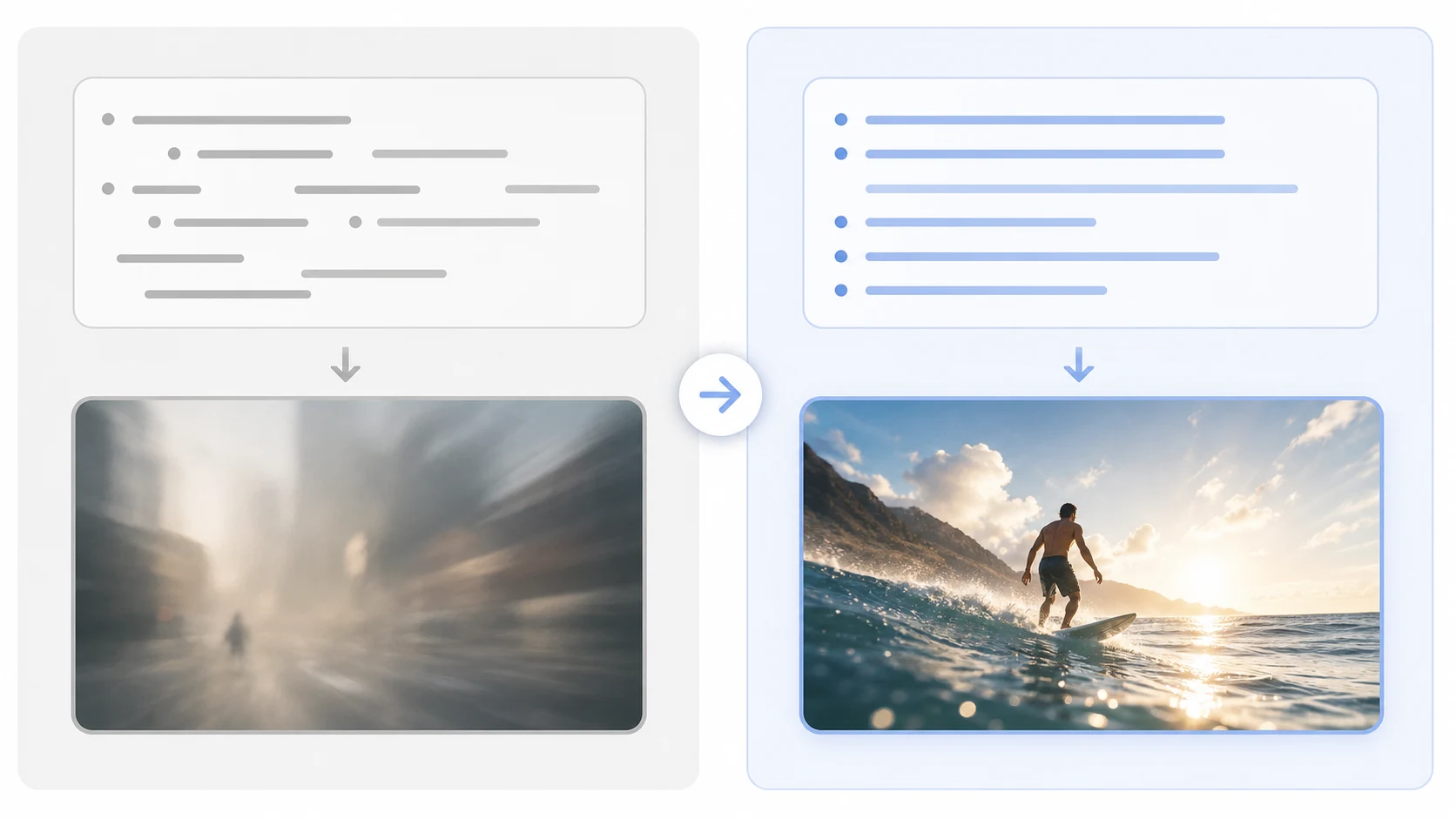
The first prompt should describe a video, not a paragraph of brand strategy. Use this structure:
[subject], [scene], [one camera movement], [one subject action], [lighting or mood], keep [important detail] stable
Examples:
minimal skincare bottle on a clean bathroom shelf, slow camera push in, soft morning light, subtle steam in background, keep the bottle shape stablesmall online shop packing a product order, gentle handheld camera move, warm desk light, calm social video stylefuturistic dashboard concept for an AI video tool, slow dolly forward, soft blue interface glow, no readable UI textfounder announcement teaser, product silhouette on stage, slow reveal lighting, cinematic but clean, no logos or text
One strong motion is enough. If you ask for a drone shot, character turn, background change, logo reveal, and text animation in the same short clip, the model has too many things to preserve.
The 10-minute workflow
Use this when you need a quick answer instead of a polished campaign.
- Write the scene in one sentence.
- Pick the final format: vertical for TikTok, Reels, and Shorts; landscape for landing pages and YouTube.
- Add one camera movement.
- Add one stability rule, such as
keep product shape stableorno readable text. - Generate a short preview in the AI video generator.
- Watch for subject drift, extra limbs, warped text, strange cuts, or unwanted camera movement.
- Revise only one part of the prompt before the next attempt.
This keeps the test honest. If the subject changes too much, reduce motion. If the scene looks flat, add a clearer camera move. If the output invents UI labels or fake logos, tell it to avoid readable text and brand marks.
Examples by use case
For ecommerce, text to video is useful before the product photo shoot. You can test a launch mood: clean tabletop, slow light sweep, quiet luxury, creator-style demo, or bold TikTok opening. Once the mood works, switch to the real product image.
For a SaaS or app launch, use text to video for abstract scenes and hero backgrounds. Do not ask it to generate exact dashboard screenshots. Use simple interface shapes, then add real UI captures later.
For creators, start with the hook. A prompt like creator desk setup, phone on tripod, short-form video planning session, warm evening light, slow push in gives a more usable direction than make a viral video.
For agencies, text to video can be a storyboard tool. Send two or three short previews to align on mood before buying stock footage, booking a shoot, or building motion graphics.
Common mistakes
Writing a prompt that is too broad. A prompt like make a professional marketing video for my brand gives the model no concrete frame. Name the subject, place, movement, and mood.
Expecting perfect text. AI video models often struggle with readable words, labels, and interface text. Add text later in an editor when accuracy matters.
Skipping the format decision. A landscape scene may crop badly for vertical social video. Decide the platform before generation.
Using text when an image is required. If the product, face, room, or design must match reality, start from a source image instead of text alone.
Changing everything after each preview. Keep one variable stable so you can learn what actually improved the result.
Prompt template for cleaner previews
Copy this and replace the brackets:
[main subject] in [specific setting], [single camera movement], [single action or atmosphere], [lighting style], [final platform style], keep [must-preserve detail] stable, avoid readable text and logos
For a product launch:
compact smart speaker on a clean desk, slow camera push in, soft light sweep across the surface, modern launch teaser style, keep product shape stable, avoid readable text and logos
For a creator intro:
creator filming a phone video at a desk, gentle handheld movement, warm evening light, social media behind-the-scenes style, keep hands natural, avoid readable text
For an app concept:
abstract AI editing interface on a laptop, slow dolly forward, soft interface glow, clean SaaS product style, no readable UI text, no real logos
When to move beyond text
Use text to video for the first creative direction. Move beyond text when the clip needs exact control.
If you have a product photo, use image to video. If you have a look you want to match, use reference to video. If you already know the camera move, use motion control. Those workflows reduce guesswork because the model gets visual context instead of relying only on words.
The best first result is not the flashiest one. It is the preview that tells you whether the idea deserves a second pass.
Open the AI video generator, write one clear scene, and generate a short preview. If the motion works, refine the prompt. If it misses the subject, switch to image-guided generation before spending more time.
FAQ
What is text to video AI?
Text to video AI generates a short video from a written prompt. You describe the subject, setting, motion, and mood, then the model creates a moving visual clip.
Is text to video better than image to video?
It depends on the job. Text to video is better for new concepts. Image to video is better when the subject must match a real photo, product, portrait, or poster.
How long should my first prompt be?
One sentence is usually enough for the first test. Include the subject, setting, one movement, one mood, and one stability rule.
Can text to video AI make readable text or logos?
Do not rely on it for accurate text or logos. Add important words, prices, dates, and brand marks later in an editor.
What should I do if the result looks strange?
Reduce the motion, simplify the scene, and change one prompt detail at a time. If the subject must look exact, use a source image instead of text alone.
David
Founder of GPT Image 2. Passionate about AI and technology. Exploring the boundaries of generative models and sharing insights with the community.